Welcome to join us and reimagine the future of design together! Join Us
Nous utilisons des cookies pour améliorer votre expérience sur nos sites Web et pour réaliser des statistiques de visite.
GstarBIM
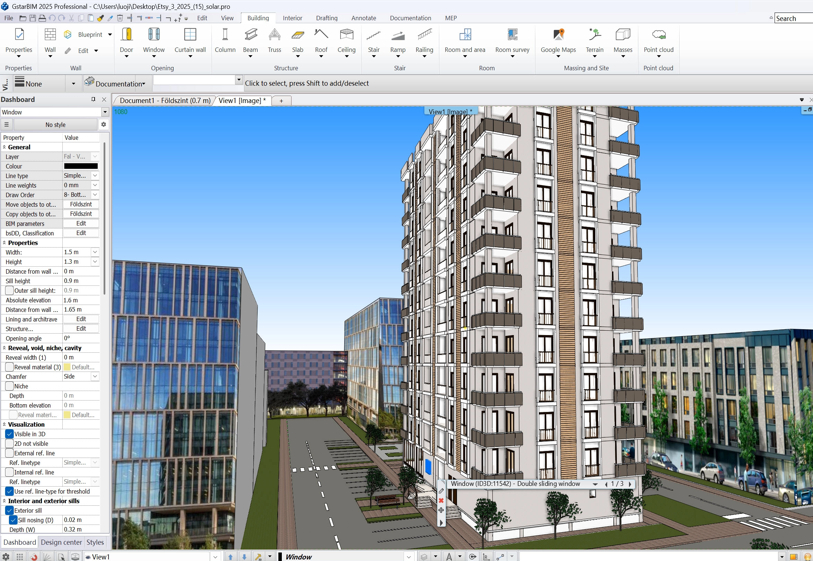
A 3D BIM/CAD software that integrates architectural, interior, and MEP design. It combines the precision of CAD with rapid visualization capabilities and features global automatic updates for design changes, delivering a full-process BIM solution from concept to completion for architecture, interior design.
GstarBIM

Advantages

High Compatibility

GstarBIM offers high compatibility with over 50 formats, including Revit, SketchUp, and CAD files. It ensures lossless data transmission based on the IFC standard and integrates buildingSMART bSDD data service, facilitating seamless data exchange and collaboration for design projects.

Supported Import Formats: DWG, 3DS, SKP, FBX, IFC, RFA, RVT, PDF, JPG, PLY, E57, RCP, etc.

​Supported Export Formats: DWG, IFC, RVT, PDF, PDF3D, SKP, FBX, OBJ, JPG, etc.

Whole-flow BIM Integrated Design

Integrating architectural, interior, furniture, and MEP design requirements;

Supports quick linking of DWG, PDF, and image documents to build BIM models without additional paid plugins.

Standardized BIM Data Platform

Compliant with international BIM application standards, featuring an online BIM resource library for on-demand access and immediate use;

Supports the bSDD classification system and enables seamless IFC document exchange.

Parametric Intelligent Modeling​

Parametric creation and dynamic modification of building components such as walls, doors, windows, roofs, and stairs.

Integration of component drawing logic with real-time associative display, significantly improving design efficiency

Bidirectional Linkage Drafting

Bidirectional editing synchronization between 3D models and 2D plans, enabling one-click generation of plans, elevations, sections, and other drawings with support for multi-scale printing.

Automated spatial area calculation and intelligent dimension labeling for planar layouts.

Professional Interior Design Suite​

Provides specialized design tools for cabinets, tiling, soft furnishings, lighting, and other dedicated modules.

Supports diverse style combinations and detailed adjustments, delivering photo-level rendering and realistic visualizations for design outcomes.

Advanced Custom Cabinet Design​

Professional-grade cabinet design tools enabling the modular design of standard cabinets for global reuse, with flexible construction capabilities for special-shaped cabinets to adapt to diverse needs.

High-Efficiency Productivity Interface​

A clean software interface with functionally logical module arrangement, featuring a gentle learning curve to facilitate rapid integration into project production.

Open Component Ecosystem​

Seamless integration with both online and offline model libraries (e.g., SketchUp 3D Warehouse), enabling permanent reuse of custom components.

Direct drag-and-drop application of materials for a true "what-you-see-is-what-you-get" experience.

Features

Architectural Design Tool Set

BIM Parametric Modeling

Utilizing parametrically driven technology, it provides intelligent modeling tools covering core components. Supports importing raster images and 2D DWG drawings to automatically generate BIM models. It features user-friendly operation while delivering precise models with complete BIM features.

Point Cloud Reverse Modeling

Compatible with mainstream point cloud formats such as LAS/RCS, it can efficiently convert point cloud data into editable, component-based BIM models. This enables easy reverse modeling of old buildings and significantly improves the efficiency of reverse modeling processes.

Masses and Site Design

Supports importing multi-source data such as elevation points and contour lines to generate 3D terrain models. Provides efficient terrain processing tools for accurate site model construction. Enables rapid creation of massing models for streamlined scheme evaluation and refinement.

MEP Design

The built-in mechanical and electrical pipeline design system supports HVAC, electrical wiring, and plumbing & drainage engineering design. It automatically calculates optimal routes to generate pipelines and adds required fittings, enabling rapid completion of complex routing tasks.

BIM Parameter Management

Supports adding BIM parameters to graphical elements and components. Integrated with buildingSMART bSDD data services, it facilitates efficient management, transfer, and collaborative interaction of BIM parameters.

BIM Project Collaboration

Supports both linked file and central model collaboration modes. Enables multi-disciplinary coordination and regional model segmentation, ensuring real-time collaborative production throughout the entire project life cycle for team members.
Interior Design Tool Set

Immersive Full-Scope Interior Design Solutions

This tool set provides comprehensive design tools for entire residential spaces, including intelligent tile layout, lighting, ceiling design, and more. It supports the entire workflow from floor plans to 3D rendering, enabling real-time visualization of materials, colors, lighting, and shadows for intuitive scheme presentation. The tool set also generates accurate design data calculations, material lists, and cost estimates, facilitating project management and budget control.

KBB Whole-House Custom Furniture Design

This system integrates highly flexible parametric cabinet design, allowing easy creation and combination of various door panel types on cabinet structures. It features efficient modeling and modification capabilities, supporting the creation of complex curved cabinets with matching curved countertops and kickboards to meet highly personalized customization needs. The intelligent drawing engine automatically generates cabinet explosion diagrams, panel cutting lists, and material lists.

Tiling Design

Utilizes unique tiling pattern management and efficient tiling tools to streamline complex design processes. Meets diverse aesthetic requirements for tiling design. Features integrated quantity calculation for accurate project statistics. Significantly enhances the professionalism and efficiency of spatial paving design.

Lighting Environment Design

Provides a lighting simulation system supporting IES light source data. Enables end-to-end efficient design from basic lighting to creative light effects. Dramatically improves the precision and execution efficiency of interior lighting solutions.

Component Library and Material Library

Provides a visual component library management panel that seamlessly supports importing components in mainstream formats such as SKP, RFA, and 3DS. The material library management panel offers a complete solution covering acquisition, creation, editing, and management of materials.
Documentation & Drawing Production Toolset

Model-Drawing-Data Integrated Drawing Production

Supports highly automated generation of 2D plans from BIM models. Intelligently updates plans, elevations, sections, and detail views when the model is modified, significantly improving drawing production efficiency.

Flexible Layer Management System

Provides an efficient and reliable technical solution for drawing production. Enables flexible control over layer visibility, line types, and plot status across different viewports based on drawing requirements, greatly enhancing efficiency and accuracy.

Intelligent Annotation System

Automatically generates dimensional chains for walls, doors, windows, and openings with one-click batch processing. Annotations maintain intelligent associations with components. Supports manual or automatic batch placement of tags that dynamically link to components and update automatically when properties change.

2D Drawing Tools

Offers an extensive standard symbol library with customization support. Features intelligent room tag recognition and placement. Provides highly customizable title blocks linked to project parameters. Generates wall elevation views for detailed dimensioning.

Quantity Take-off

Automatically extracts schedule data directly from model components. Schedules update in real-time with model modifications, ensuring highly consistent and accurate design documentation data.
Visualization & Rendering Tool Set

Professional-Grade Rendering

Features a built-in rendering engine that automatically reduces noise and enhances details. Delivers physically accurate light and shadows with cinematic-quality output. Allows precise control over light sources and model complexity, with progressive rendering for real-time image optimization and photorealistic results.

Material Library & Fine Control

Offers a rich set of preset rendering styles and supports fine-tuning material properties such as brightness, reflectivity, roughness, bump maps, and transparency to achieve true-to-life visual quality.

Walkthrough Animation

Supports 360° panoramic previews and generates walkthrough animations. Can also create construction simulation animations based on component "design stage" properties.

D5 Render Interoperability

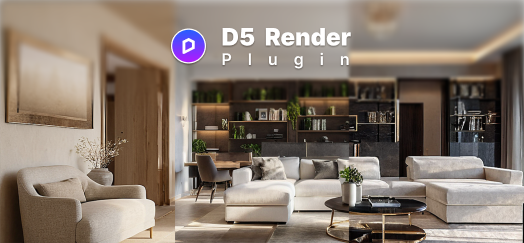
Integrated with the D5 Render plugin, enabling one-click model synchronization. Perfectly transfers lights and materials to eliminate visual discrepancies, with real-time view list updates for instant switching between design and rendering workflows.

Available Plugins

FAQ

After closing the Quick Access Menu, Design Center, and Style Palette, how can I reopen them?​​

If you have closed toolbar panels while using the software, you can restore them by right-clicking on a blank area of the ribbon, selecting "Toolbar" from the pop-up menu, and then checking the desired toolbar panels in the "Toolbar" drop-down menu. You can also reset to the default interface

How to customize the toolbar in GstarBIM?​​

1. Right-click on a blank area at the top of the toolbar and select "Toolbar" from the menu.
2. In the pop-up customization panel, you can manage toolbars. To create a new toolbar, first select the "Toolbar" list on the left side, then click "Create User Toolbar".
3. After creating the toolbar, you can rename it and define its information. Select commonly used commands from the left list and drag them into your custom toolbar by holding the left mouse button.

Does the software support custom shortcuts? How to set them up?​​

The software supports custom keyboard shortcuts. GstarCAD BIM has its own shortcut system and also includes a preset Revit shortcut scheme. You can switch between them by clicking Settings at the lower left of the software -> User Interface -> Alternate Keyboard Shortcuts.
1. In the panel, you can switch between the Revit and GstarBIM shortcut schemes under Shortcut Scheme. On the left list, you can select command categories. On the right list, find the command you want to modify and type the desired shortcut in the "Shortcut Key" field (supports single keys and key combinations). Click the "X" next to a shortcut to delete it.
2. You can export your shortcut settings as an XML file. To reuse these settings on another computer, simply import the XML file.

​Is there a navigation bar in GstarBIM for convenient view browsing?​​

The software's view navigation bar is hidden by default. You can enable it by clicking Settings at the lower left -> User Interface -> check 'Navigation Bar Visible'.
In 3D views, the navigation bar controls 3D navigation, view switching, and display modes. In 2D views, it helps switch floor plans and navigate the drawing

How to define new door/window styles in the software?​​

1. The software supports creating new door/window styles. Go to the Architecture tab -> Properties -> Doors/Windows -> Door.
2. In the pop-up panel, click the "Door Name" field to open the style creation panel, then click "New".
3. In the new panel, set the door name and its application scope.
4. After setting, click on the door style.
5. In the pop-up panel, select the desired door style and click "OK".
6. Select parameters you want to modify from the left list and adjust them according to project needs. Click "Modify" after setting, then click "OK". The process for window styles is similar

How to copy components or materials from one client computer to another?​​

Exporting/Importing all objects in a category or sub-category:​​
1. Open the Design Center panel -> Components -> Right-click the component category you want to export -> Select Export.
2. In the pop-up window, enter a filename and click Save. This saves an .environmentfile.
3. On another computer, go to Design Center panel -> Components -> Settings -> Import, and select the .environmentfile.
4. Alternatively, you can drag and drop the .environmentfile from a folder directly into the GstarCAD BIM view to read it.

Exporting specific components within a sub-category:​​
1. Open the Design Center panel -> Components -> Settings -> Enable Multiple Selection Mode.
2. Hold the SHIFT key and click the components you want to export. After selection, click Settings in the Design Center and choose Export to save an .environmentfile.
3. Import the file on the other computer as described above.

The software ribbon is completely collapsed. How to restore it?​​

The software has a "Clear Screen" function that maximizes the drawing area. You might have activated it accidentally.
To disable "Clear Screen": Click on any tab name (e.g., "Interior") on the ribbon. Then, right-click on a blank area within the expanded ribbon and from the context menu, select "Minimize the Ribbon" to uncheck it

The 3D Warehouse shows a white screen. How to fix this?​​

If the 3D Warehouse in GstarBIM shows a white screen and models fail to load, you can try clearing the browser data. Click the Settings button at the lower left -> Project Settings -> Delete built-in browser cache, history, and cookies.

The software warns that the model is too far from the origin. How to resolve this?​​

If you get a warning upon opening a model that it is too far from the origin, try the following:
1. In a 2D view, select: Annotate -> Measure -> Component List. The pop-up panel will list elements that are far away. If they are unnecessary for the project, you can delete them.
2. In a 3D view, select: Annotate -> Measure -> Component List. The pop-up panel will show components that are far away. Delete them if they are not needed.
3. You can reposition the origin. Select: View -> Orientation -> Reset Base Point. Specify the new base point location in the drawing area. You can also restore the original base point.
4. Alternatively, use the "Move" command to move all elements closer to the origin

Where can I manage files linked to the project?​​

The software supports linking various file formats. The management interface for linked files is located at: File -> Links -> Manage Links.
In the External References management panel that opens, you can view all linked files in the project. You can perform actions like Detach, Reload, Bind, or Unload on these files.